
How-to Guides
How to Edit Homepage Copy Visually
Open Visual Editing, click real homepage content, then edit site name, hero copy, navigation and footer from the side panel.
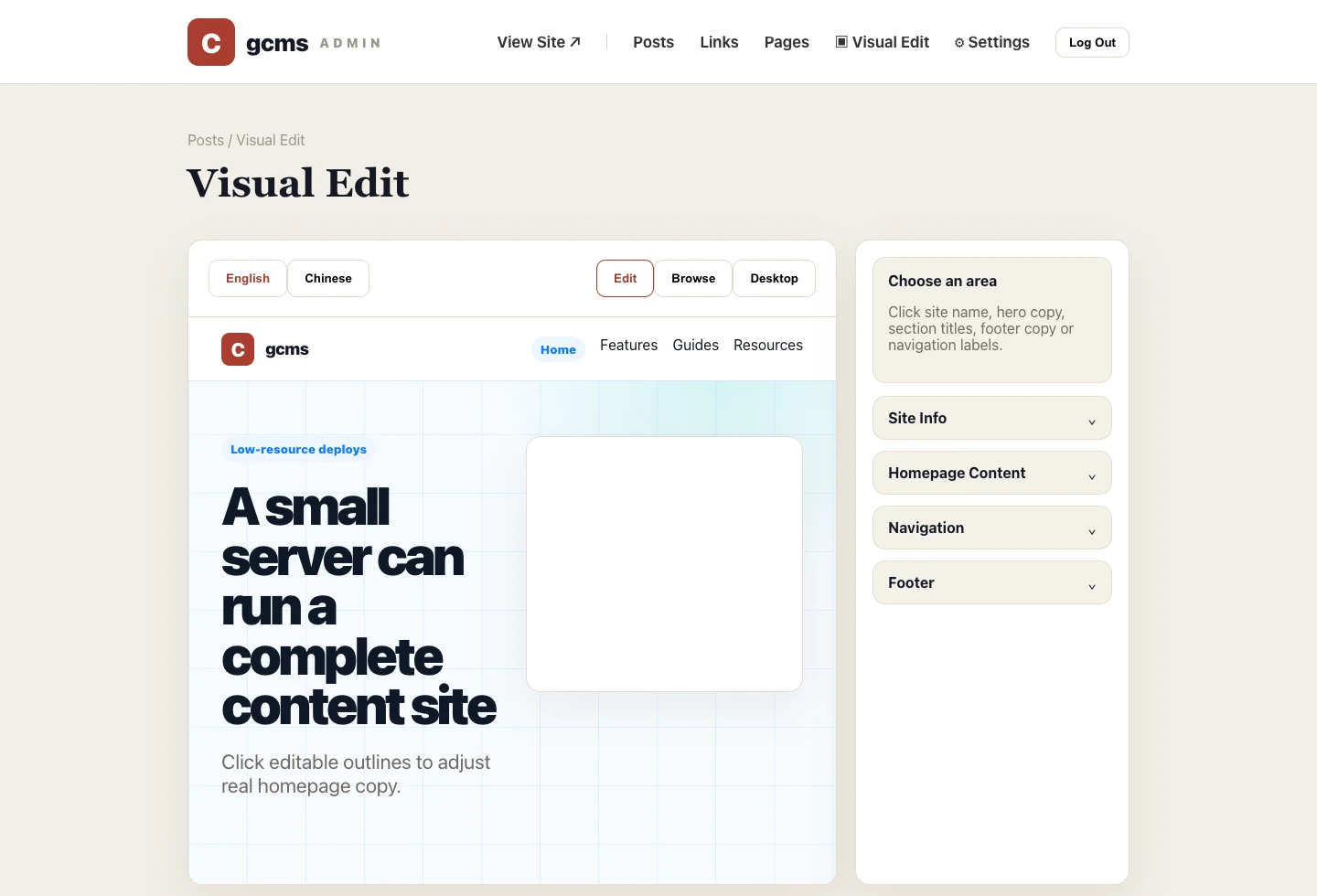
Many non-technical users do not know where site name, tagline or hero title will appear. Visual Editing solves that by letting you edit directly on the real front-end preview.
Step 1: Open Visual Editing
Click Visual Editing in the admin header. The left side is the real front-end preview; the right side lists editable groups. Dashed outlines mark content you can click.
Step 2: Choose a language
Switch between Chinese and English at the top. Edits apply only to the current language; empty values fall back to the default language.
Step 3: Click visible copy
Click the hero title, description, buttons, navigation labels or footer copy. The matching form opens on the right. Save, and the preview updates.
Step 4: Check links in browse mode
Edit mode changes text; browse mode lets you navigate inside the preview. After changing the homepage, switch to browse mode and click navigation and buttons to confirm paths.
When to use it
Visual Editing is best for site basics, homepage copy, navigation labels, category entry text and footer copy. Use the article editor for post content so title, cover, SEO and body stay together.