
How-to Guides
How to Change the Site Theme
No CSS and no redeploy. Open Appearance & Themes, preview, choose, tune accent color and radius, then save.
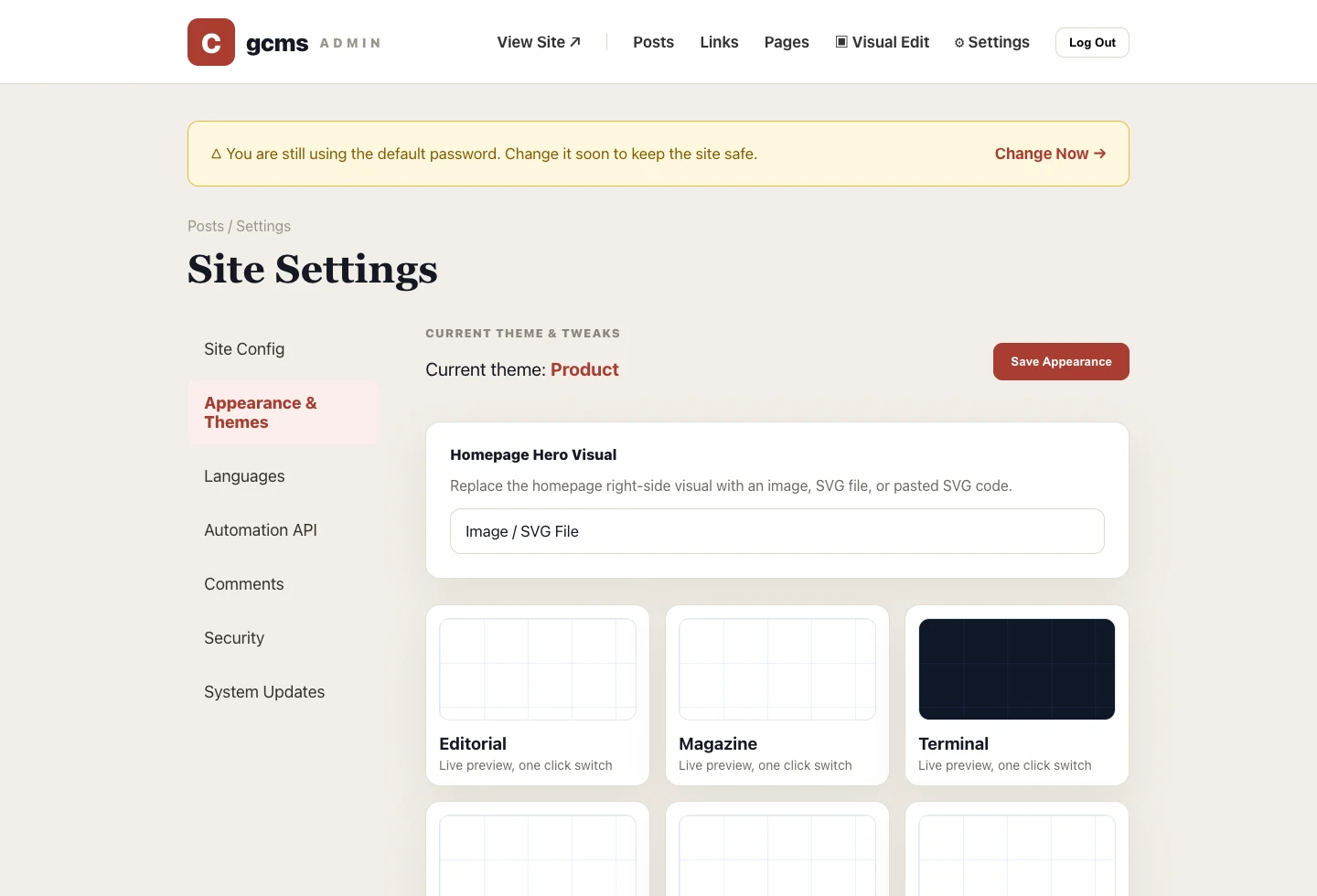
A theme shapes the first impression: whether the site feels like a real product, whether it is comfortable to read, and whether calls to action are clear. In gcms, switching themes is an admin setting, not a code change.
Step 1: Open Appearance & Themes
Log in to the admin and go to Settings → Appearance & Themes. Each card previews your current content in that theme, so you are not choosing from placeholder art.
Step 2: Choose by use case
For a product site, check whether the hero and CTA are clear. For docs, inspect reading width, code blocks and navigation. For campaign pages, a stronger visual theme may be right. Do not choose only by taste; choose by content fit.
Step 3: Tune accent and radius
After selecting a theme, enable custom settings and adjust accent color and corner radius. Match the accent to your brand; use smaller radius for tool-like sites and larger radius for softer marketing pages.
Step 4: Save and verify the front end
After saving, the front end updates immediately. Check the homepage, article page, category page and links page to make sure headings, buttons, code blocks, images and navigation still feel coherent.
A theme is not decoration. It is the first layer of trust before the content is read.